• Library Card

    Please be prepared to show proof of your address when applying for or renewing your Card.

    Sign Up

    Sign up for a Library Card by visiting any of our Library branches; learn more here.

    Renew

    You can renew your card by:

    • coming into a branch in person with your ID
    Questions?

    Call us at (807) 345-8275.
    eServices are not free for everyone. To use Thunder Bay Public Library's eServices, you must hold a valid Library Card by:

    Residents of the City of Thunder Bay pay for Public Library service in their property taxes; Membership is free of charge.

    Non-residents not covered by a service agreement may purchase Library Cards on an annual basis.  

    Through service agreements with other municipal governments, Cards are also free for residents of certain communities; visit our Get a Card page for details.

    Full-service Cards for Adults, Youth, and Juvenile accounts can borrow up to 50 physical items.  This number (50) includes a maximum of 15 adult DVDs and 10 children's DVDs.  They also give full access to our digital collections.

    Limit cards for Adult, Youth, and Juvenile accounts can borrow a maximum of 7 physical items. This Card type also has full access to our digital collections.

    eService Cards offer digital access only. They provide access to the public computers at all locations in addition to our databases and online collections. This Card type does not provide for borrowing of physical items.

    More information on Library Card types can be found in the Get A Card Section of our website. 

  • New Website

    The titles you saved were not lost. You can import all the items from your wish list onto your For Later shelf. Just go to your For Later shelf, and then click the Import button to import your wish lists from the old catalog. This is a one-time process, and then you can move items to other shelves or lists as needed.  

    Registration is required to take advantage of all of the features of the site, including the ability to manage your renewals and holds, contribute ratings and reviews, and follow others to see what they’re enjoying.

    When you register, you'll create an easy-to-remember username you can use to log in, so you don’t have to type your barcode every time you want to check your account.  

    Registration also allows you to get personalized recommendations and contribute ratings and reviews.  

    No, you don’t have to.  If you don’t, BiblioCommons will assume you are a minor, and some features will be unavailable to you. 

    Once you’ve created your account and chosen a username, it’s up to you whether you use it to log in or keep using your library card number. You can use either one.

    The reason we require all users to select a unique username is because the new catalogue has additional optional functionality, like commenting on books and keeping track of your reading on shelves. To support this, we need all users to create a username.   

    To view your shelves

    1. Log in to your account.
    2. On the menu, click For Later Shelf, Completed Shelf, or In Progress Shelf.

    You can move between shelves using the links below your username.

    By default, titles are sorted by the date you added them, most recent first. By clicking the Sort by dropdown list at the top of the page, you can sort by date added, title, or author. You can also sort your Completed and In Progress shelves by rating.

    BiblioCommons is an online catalogue that Thunder Bay Public Library uses that makes it easier to track your holds and renewals and find the titles you are looking for in our collection.

    BiblioCommons also allows you to share ratings and commentary about the titles you find at your library, and to connect with other library users. 

    BiblioCommons shares user contributions from libraries across the world. Usernames are shared across all BiblioCommons libraries. 

    The new website is easier to use on different devices and easy to search and browse, with a navigation menu that helps you discover more of what Thunder Bay Public Library has to offer.  New landing pages bring together information on programs, collections and services based on your interests.

    Your Library's new catalogue system has better searching, provides the option for users to keep track of their reading and allows users to discover titles in new ways. Read more about what we love!

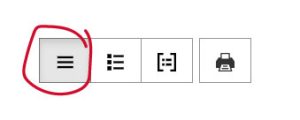
    This is a unique feature of BiblioCommons and allows you to see all the options available for a specific item. The grouping feature is automatically clicked on for all accounts, but if you would like to see items listed instead of grouped you can turn this feature off by clicking on the list view option (farthest left option) to the left of the total number of results at the top of the search page.   

    No, an email address is optional. It will be used if you forget your PIN and request a reset. We may also use your email address to send you notifications of items ready for pickup, coming due or overdue. 

    The Library doesn’t review any of the comments that are added. Rather, there is a community moderation model in place.  

    If you see something inappropriate, you can click the Report this link. When 3 separate users report something, the comment is automatically removed and reviewed against the Terms of Use of the catalogue.  

    There is a low incidence rate of inappropriate comments being added to BiblioCommons catalogues, as all content that users add is associated with their Library Card - there is no opportunity for anonymous posting. 

    Yes!  This is called your "For Later" Shelf.

    Your For Later shelf is like a wish list, a place to keep track of titles you’d like to borrow at some point. You can make items on this shelf public (visible to others) or private.

    ► To add a title to your For Later shelf

    1. Log in to your account.
    2. From any of an item’s details page, search results, awards and bestseller lists, or another patron’s shelves, click the For Later button next to the item.

    ~or~

    1. Log in to your account.
    2. On the menu, click For Later Shelf.
    3. Click Add a title.
    4. Search for the title you want to add.
    5. Click the + Add link.
    6. Search for additional items if required, and then close the popup window.

    You can add as many titles to this page as you like. There is no limit.

    Learn more about viewing your Shelves here.

    Pausing Holds

    If you don’t want an item you have requested to become available when you’re unable to pick it up, you can pause the hold. Pausing, or suspending, retains your place in line until you’re ready to resume. It’s useful if you have items on hold and go on vacation, or already have things checked out you haven’t finished yet.

    To pause a single hold

    1. Log in to your account.
    2. On the menu, click On Hold.
    3. Find the title you want to pause.
    4. Click the Pause hold button.
    5. Depending on the system your library uses, you may also be prompted to choose an end date, or a start and end date. Pick your dates, and then click Yes, pause holds.
    6. You’ll see the message “Successfully paused holds.”

    To pause multiple holds

    1. Log in to your account.
    2. On the menu, click On Hold.
    3. If necessary, filter your holds by clicking Not ready under the My Borrowing summary on the left of the page. On a tablet or smartphone, tap the My Borrowing button first to display the filters.
    4. Do one of the following:
      • Click the checkbox next to each item you want to pause
      • Click the checkbox above the items to select all of the items on the page.
    5. A bar appears at the bottom of the page. Click Manage items, and then click Pause holds. The number of items affected appears in brackets on the menu.
    6. Depending on the system your library uses, you may be prompted to choose an end date, or a start and end date. Pick your dates, and then click Yes, pause holds.
    7. You’ll see the message “Successfully paused holds.”

    We agree with you 100%.

    The only information that is shared with others through this new system is information you choose to share.  Read more about how Thunder Bay Public Library and BiblioCommons protect your privacy.

  • Borrowing

    Please be prepared to show proof of your address when applying for or renewing your Card.

    Sign Up

    Sign up for a Library Card by visiting any of our Library branches; learn more here.

    Renew

    You can renew your card by:

    • coming into a branch in person with your ID
    Questions?

    Call us at (807) 345-8275.

    eServices are not free for everyone. To use Thunder Bay Public Library's eServices, you must hold a valid Library Card by:

    Residents of the City of Thunder Bay pay for Public Library service in their property taxes; Membership is free of charge.

    Non-residents not covered by a service agreement may purchase Library Cards on an annual basis.  

    Through service agreements with other municipal governments, Cards are also free for residents of certain communities; visit our Get a Card page for details.

    Don't panic!  There's a Forgot your Password? link under the login fields.  When you click this link, you'll need to enter the barcode number from your Library Card.  The system will send the email address on file a reset email to get you set up with a new 4-digit PIN.

    If you don't have an email address on file with us, you can call us at 807-345-8275 for help in resetting.  Please have your Library Card and your ID on hand to verify your identity.

    To view your shelves

    1. Log in to your account.
    2. On the menu, click For Later Shelf, Completed Shelf, or In Progress Shelf.

    You can move between shelves using the links below your username.

    By default, titles are sorted by the date you added them, most recent first. By clicking the Sort by dropdown list at the top of the page, you can sort by date added, title, or author. You can also sort your Completed and In Progress shelves by rating.

    Visit our Digital Library to learn about our online collections, including

    • eBooks, eNews, eMagazines & eAudiobooks
    • eComics & digital graphic novels
    • streaming video
    • streaming classical music
    • databases
    • research tools
    • local history indexes

    No, we eliminated Overdue Fines for everyone at the beginning of 2020. We have also cleared all Library accounts of overdue fees and charges as of May 31, 2021.

    However, Lost Item Fines will be charged for items when they are 50 days overdue. You will be charged for the replacement of the item and will need to pay the fine or return the item before taking out more Library materials.  If you are able to return the item, the charge will be removed.

    You will receive your hold pick up notification via email or telephone.

    Once you have received a phone call or email about your hold, you can pick up at the confirmed location during hours of operation. Look for signage and directional information at all locations; you'll find your hold under your name on our hold shelf at your branch. 

    Take your holds to a self-check kiosk or to staff at any service point. Self-check kiosks require a Library Card to use; if you forgot your library card but have another piece of identification, you can check out your hold with staff at the desk.

    You can place a hold on items which are currently unavailable, to reserve an available item at its current location or to have items available within the system sent to a Library branch of your choice for pickup.  

    If an item is unavailable when you place your hold, you'll be placed on a waiting list.  

    When the item you've requested is ready for pickup, we will phone or email you.

    You can hold up to 50 items at one time. 

    This is a unique feature of BiblioCommons and allows you to see all the options available for a specific item. The grouping feature is automatically clicked on for all accounts, but if you would like to see items listed instead of grouped you can turn this feature off by clicking on the list view option (farthest left option) to the left of the total number of results at the top of the search page.   

    Yes, please bring all of your family members' Library Cards or identification with you when doing the pick up to ensure the items are checked out to the right cards.

    After you’ve been notified that the hold is available, we will keep the item reserved for pick up for six days. After six days, the item(s) will be returned to the shelf or will be offered to the next person who has it on hold.

    Interlibrary Loan (ILLO) is a service which allows Thunder Bay Public Library card holders to borrow items not found in our collection from another library.

    It can be used by anyone who has a valid Thunder Bay Public Library card in good standing. 

    ILLOs can be used to borrow books, select audiovisual items, articles and archival and genealogical microfilm.

    To learn more and to use the ILLO service, visit our Interlibrary Loans page.

    Yes!  This is called your "For Later" Shelf.

    Your For Later shelf is like a wish list, a place to keep track of titles you’d like to borrow at some point. You can make items on this shelf public (visible to others) or private.

    ► To add a title to your For Later shelf

    1. Log in to your account.
    2. From any of an item’s details page, search results, awards and bestseller lists, or another patron’s shelves, click the For Later button next to the item.

    ~or~

    1. Log in to your account.
    2. On the menu, click For Later Shelf.
    3. Click Add a title.
    4. Search for the title you want to add.
    5. Click the + Add link.
    6. Search for additional items if required, and then close the popup window.

    You can add as many titles to this page as you like. There is no limit.

    Learn more about viewing your Shelves here.

    Pausing Holds

    If you don’t want an item you have requested to become available when you’re unable to pick it up, you can pause the hold. Pausing, or suspending, retains your place in line until you’re ready to resume. It’s useful if you have items on hold and go on vacation, or already have things checked out you haven’t finished yet.

    To pause a single hold

    1. Log in to your account.
    2. On the menu, click On Hold.
    3. Find the title you want to pause.
    4. Click the Pause hold button.
    5. Depending on the system your library uses, you may also be prompted to choose an end date, or a start and end date. Pick your dates, and then click Yes, pause holds.
    6. You’ll see the message “Successfully paused holds.”

    To pause multiple holds

    1. Log in to your account.
    2. On the menu, click On Hold.
    3. If necessary, filter your holds by clicking Not ready under the My Borrowing summary on the left of the page. On a tablet or smartphone, tap the My Borrowing button first to display the filters.
    4. Do one of the following:
      • Click the checkbox next to each item you want to pause
      • Click the checkbox above the items to select all of the items on the page.
    5. A bar appears at the bottom of the page. Click Manage items, and then click Pause holds. The number of items affected appears in brackets on the menu.
    6. Depending on the system your library uses, you may be prompted to choose an end date, or a start and end date. Pick your dates, and then click Yes, pause holds.
    7. You’ll see the message “Successfully paused holds.”

    Yes, please call or email any branch to request an item, or head to our Interlibrary Loan page to access the form.

    You can call the Library at (807) 345-8275 (choose the location that you want to connect to) during hours of operation to request up to five titles to be placed on hold.

    You can also stop into any TBPL branch and staff will be happy to place holds on your behalf. You'll need to bring your library card or a piece of ID with you to complete the hold process.

  • Digital Library

    eServices are not free for everyone. To use Thunder Bay Public Library's eServices, you must hold a valid Library Card by:

    Visit our Digital Library to learn about our online collections, including

    • eBooks, eNews, eMagazines & eAudiobooks
    • eComics & digital graphic novels
    • streaming video
    • streaming classical music
    • databases
    • research tools
    • local history indexes

    As part of Thunder Bay Public Library's transition to hoopla for digital services, our subscription to Comics Plus was not renewed, and will expire on June 30, 2025. 

    Learn more and get started with hoopla here.

    On Monday, March 17, we began migrating our eBook and audiobook titles from cloudLibrary to hoopla, a new platform that offers an improved digital borrowing experience. During this transition, materials will no longer be available on cloudLibrary. These titles will become accessible again starting April 1 on hoopla.

    Learn more and get started with hoopla here.

    Email coaches@tbpl.ca for more detailed assistance, or email comments@tbpl.ca for help signing up for a Library card or updating your PIN.

  • Services

    Interlibrary Loan (ILLO) is a service which allows Thunder Bay Public Library card holders to borrow items not found in our collection from another library.

    It can be used by anyone who has a valid Thunder Bay Public Library card in good standing. 

    ILLOs can be used to borrow books, select audiovisual items, articles and archival and genealogical microfilm.

    To learn more and to use the ILLO service, visit our Interlibrary Loans page.

  • Research

  • Privacy

    Registration is required to take advantage of all of the features of the site, including the ability to manage your renewals and holds, contribute ratings and reviews, and follow others to see what they’re enjoying.

    When you register, you'll create an easy-to-remember username you can use to log in, so you don’t have to type your barcode every time you want to check your account.  

    Registration also allows you to get personalized recommendations and contribute ratings and reviews.  

    No, you don’t have to.  If you don’t, BiblioCommons will assume you are a minor, and some features will be unavailable to you. 

    Once you’ve created your account and chosen a username, it’s up to you whether you use it to log in or keep using your library card number. You can use either one.

    The reason we require all users to select a unique username is because the new catalogue has additional optional functionality, like commenting on books and keeping track of your reading on shelves. To support this, we need all users to create a username.   

    No, an email address is optional. It will be used if you forget your PIN and request a reset. We may also use your email address to send you notifications of items ready for pickup, coming due or overdue. 

    We agree with you 100%.

    The only information that is shared with others through this new system is information you choose to share.  Read more about how Thunder Bay Public Library and BiblioCommons protect your privacy.